In this version the following items are newly developed.
Import possible for lists from the Government Gazette
In this version it is possible to read in certain lists that are published in the Government Gazette in SOFOS360. It concerns the following new lists:
- ZZS list
- Annex 12a
- Annex 12b
To make it easier for you, ITIS periodically collects these lists and prepares them for reading in SOFOS 360. The new list can be found on your TOPDesk portal. After downloading the list, you can read it in SOFOS 360 via the menu item 'External lists'. After reading, SOFOS360 will check if there are new substances on the list which you also have in your administration, and if necessary indicate that the substance is on the list. On the screen you will see all new substances which you have in your administration and which are found on the list.
Being able to link directly to a document in SOFOS360 without having to log in to SOFOS360 first
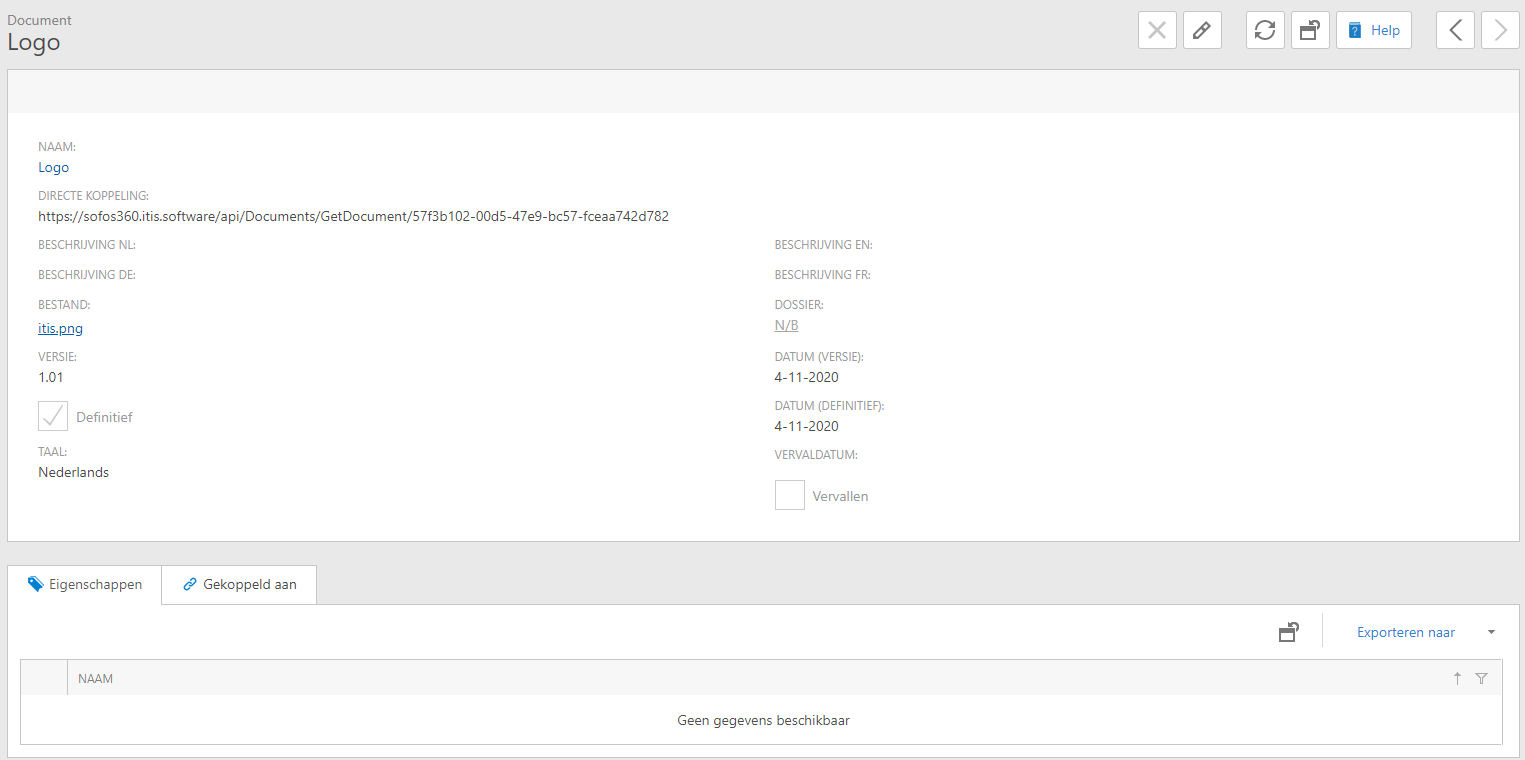
From a document in SOFOS360 you can now generate a so-called deep-link which makes the document directly accessible via a browser without you having to log in to SOFOS360 first. This way an important document which you have saved in SOFOS360 does not have to be saved somewhere else at the moment you wish to refer to this document outside SOFOS360.
On the document screen (Settings - General- Documents) you will now find a field 'Direct link' which allows direct access to the active document.
Graphically represent the formula of a substance
On the 'Physical properties' tab within the 'Properties' tab of a substance there is now the possibility to show the chemical structure of the actual substance. From this version on SOFOS360 has the possibility to generate a picture of the chemical structure of a substance based on a so-called SMILES-description. SMILES stands for 'Simplified Molecular-Input Line-Entry Specification' and is a method to describe the structure of a substance in an unambiguous way.
For many substances such a SMILES-description can be found on the internet. To make it easier, SOFOS360 also offers the possibility to search for the SMILES-description of an actual substance. For this purpose an external database with many substances is used. This database is searched for the SMILES-description based on the CAS-number or name. It is not certain that your substance is also in this database, but the chances are high that it is.
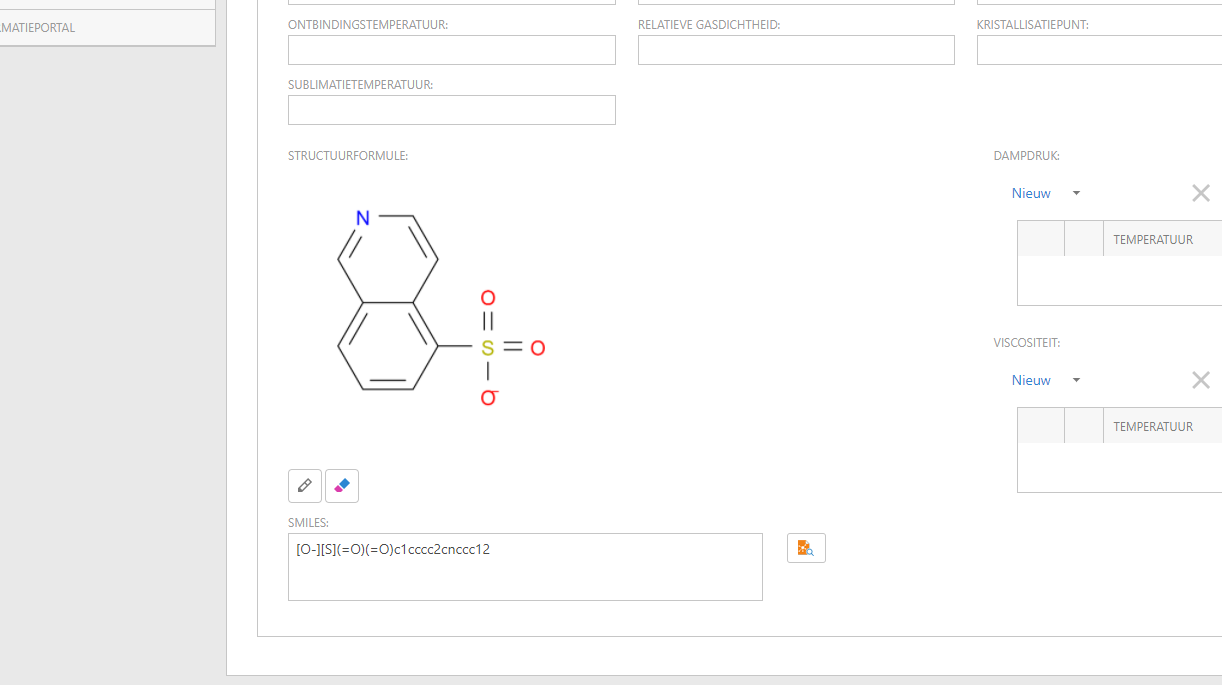
By clicking on the button with the orange square you can start the search in the external database. When the substance is found, the SMILES description will be shown in the 'SMILES' field and the graphical structure of the substance will be displayed above it. You can also enter a SMILES description and after pressing the orange square it will be graphically presented.
Processing report available after updating DBD substances
When updating DBD substances (substances from the external databases of BIG, AZH, DGZ or CHEMWATCH) from this version on it is possible to print or export a processing report of the update as a PDF document. This report is available after one or more substances have been updated and can be called up using the 'Difference list' button. A report is then created that gives an overview of the modified fields per updated substance.
This processing report is not saved. After closing the screen 'Update substance information' the report is no longer available.
Automatic notification when a document is about to expire
Documents can have an expiration date. When this date is about to be reached, you can, as of this version, automatically receive a notification when a document will expire within 30 days. This notification can be given to you by means of a pop-up window or a notification indicator at the top of the screen. From the pop-up screen, the document in question can be opened directly to link a new version of the document, if necessary.
In the default settings, a user can indicate whether a notification should be shown when a document expires within 30 days and whether this should be done by means of a pop-up window.

When a document is due to expire within 30 days, a notification indication is shown in the top right corner of the screen. If you have also indicated in the standard settings that you want to be notified when a document expires within 30 days, another pop-up is shown. You can also click on the notification icon to open this window.
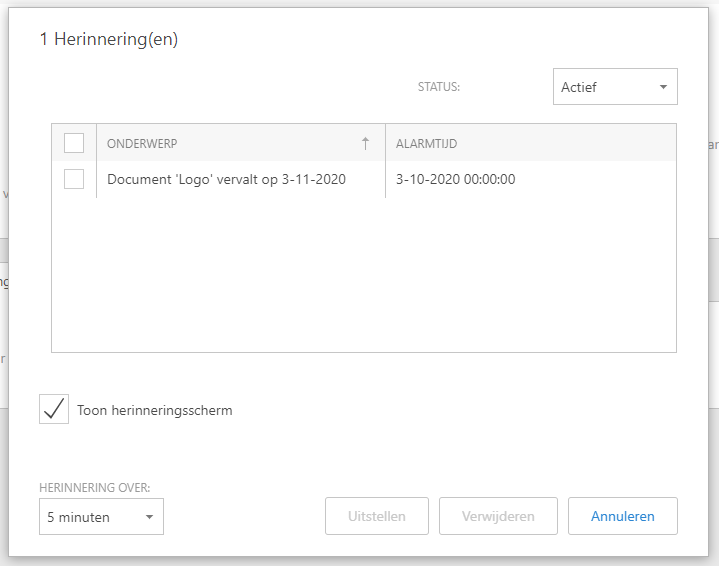
In the pop-up window you can open the document directly or you can indicate when you want to receive a reminder about the expiration of the document.
Information portal has been renewed
The internal structure of the information portal has been modified so that it does not have to be completely built up at the start of the day. From this version on, the portal is always directly available. Just like in the previous version, you can searched on substance name, CAS number, UN number GHS index number, all substance names, a pot number or aartikelcode.
Furthermore, it is now possible to search for a substance based on multiple properties.The search is done in an 'and' way. For example, by searching foralco 70% will searched for all substances that are both 'alcoas well as "70% contain.
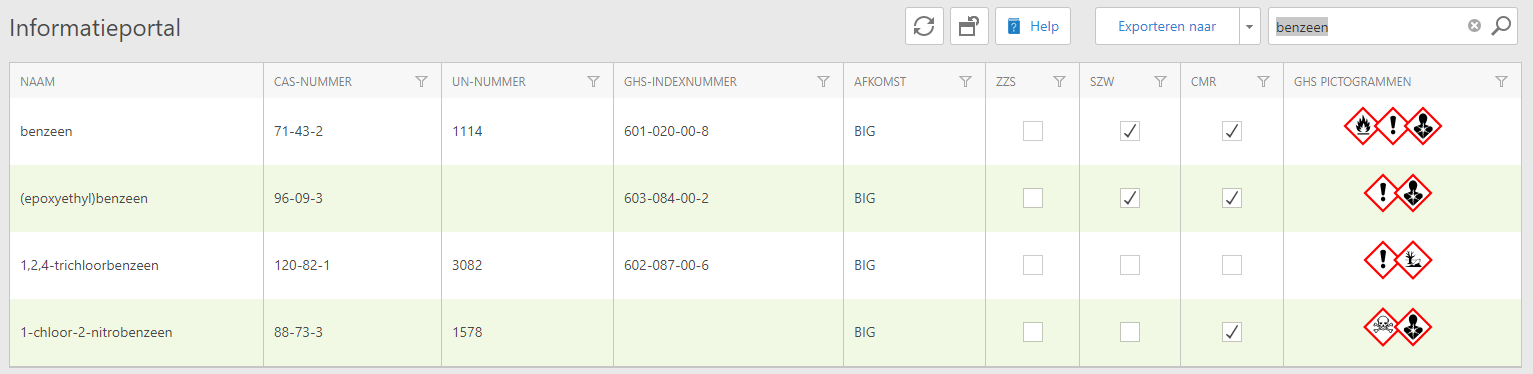
In the previous version it was possible to search for a substance containing the exact search term by using '='. That is also possible in this version where it is now also possible to use to search exactly with the help of "". So s if you look for "benzene" you will only find substances of which one of the search fields contains exactly the term "benzene".
By clicking on a line, the information of both the documents and the names and potten now available on one screen. Thus, there is no longer any difference between calling up the documents or calling up the pot view.
Finally, it is now possible to filter, group and sort the list of substances.After logging in, all changes to the list are removed so that you or the next user can start again with the original list of substances
Changed the control on the number of concurrent users.
Within SOFOS360 the number of simultaneous active users is limited to the number of users included in the purchased licenses. Despite the fact that SOFOS360 releases as many inactive users as possible it can happen that a user is not released at the moment a user closes the browser for instance. If this happens more often it can occur that at a certain moment it is no longer possible to log in to SOFOS360 because the total number of available users has been reached. As of this version SOFOS360 actively tries to determine whether the connection to a user is still active. If that is not the case SOFOS360 will release the connection and the user.
Furthermore, an administrator can now see which users are logged in via the "Active users" button in the user overview and it is even possible to release a user in case of calamities.

Substances can now be entered directly as a mixture without adding specific mixture components
Within SOFOS360 a substance can be entered as a pure substance (without mixture components) or as a mixture (with mixture components). From this version on it is also possible to mark a substance directly as a mixture without having to add mixture components first. By checking the box 'Is mixture' on the main screen, the substance is considered to be a mixture. When a substance has been added to a mixture components, this checkbox is automatically ticked and cannot be changed.

New overview 'expenditure'
The overview 'expenditure' shows the consumption per item or per substance. The overview can be found in the Stock section of the reports.
The following options are available as filters:
- From space
- Article
- Substance
- On list
- Start date
- To date
- Including issued pots
This last choice ensures that when determining the usage, not only the pots with the status 'Used' are counted but also the pots with the status 'Spent' will be counted.
In the summary, all pots of the same article or substance and of the same basic unit (litre, gram, etc.) will be added up. When more than one basic unit is found for a substance, these will be included in the list as separate totals.
Internal displacement of pots within the 1000-point arrangement
For the transport of limited quantities of hazardous substances in mixed cargo, use can be made of the so-called 1000-point arrangement. Transport under this scheme excludes a number of requirements of the ADR. This exemption can only be used for the transport of mixed cargo (packagings, large packagings andIBC’s), but not for other forms of enclosure such as tanks, tank-containers, tank-vehicles, etc. To be able to transport dangerous goods within this 1000-points regime, the condition must be met that the total number of points of the transport does not exceed 1000. With the help of a number of rules and the ADR-class and UN-number these points can be determined.
From this version you can compose a transport of pots after which SOFOS360 calculates whether the composed transport falls within the regime of the 1000-points regulation.
You can create a new transport via the menu item Stock - Transport document.
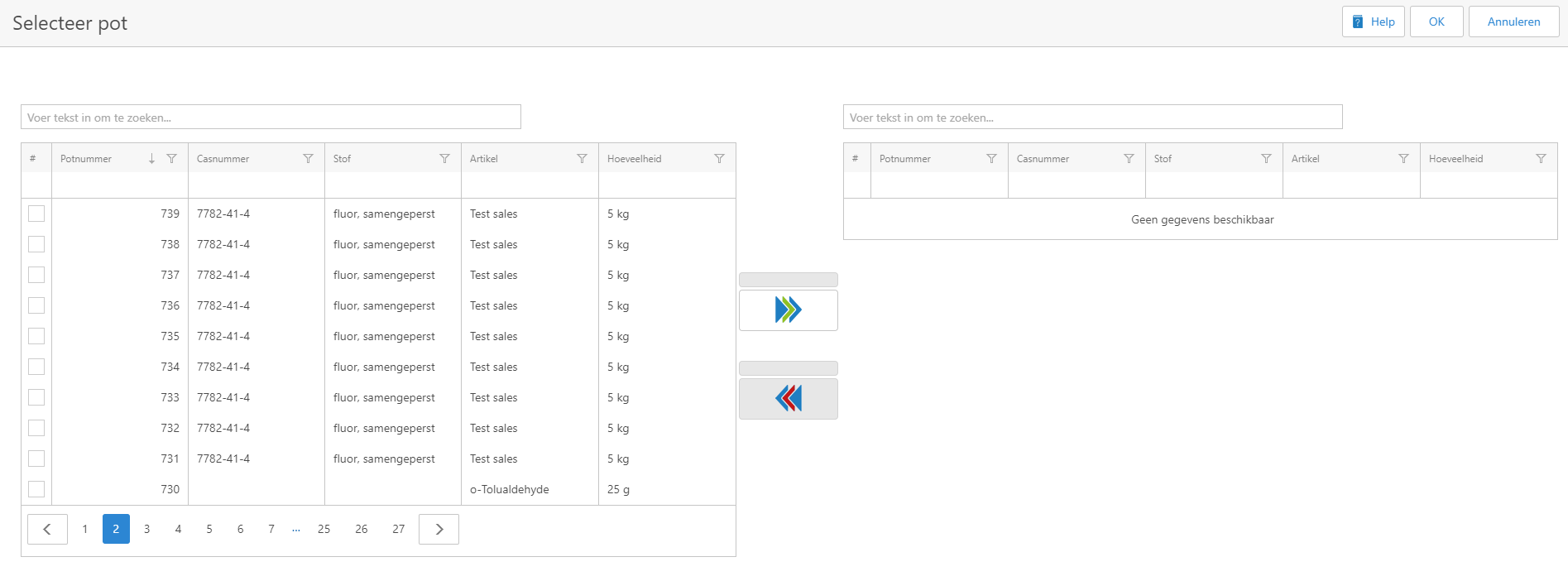
After closing this screen, the points are calculated. It is also possible to print a report in which the result of the calculation is specified.
It is now possible to change the type of a room
Within SOFOS360 a room has a certain type. Certain properties are also linked to this type. In the past, it was not possible to change a room type. As of this version, however, that is now possible. Above the overview of rooms you now find the button 'Modify room type' which can be used to change the type of a selected room.

In the screen that is displayed afterwards, you can set the new room type.
Bug fixes / Improvements
Miscellaneous
- The columns ZZS, SZW and CMR have been added to the information portal.
- In the pot overview in the information portal, the field 'Free code' of the pot has been added.
- From this version it is possible to copy a self-created report.
- In a substance the ATP-version can now be included.
- The overview screen of texts in a material can now also be grouped so that you can more easily see, for example, how many texts are present in a particular chapter and whether all the required chapters have texts.
- The SDS and the WIK of the linked substance can now be called up directly from a pot or article.
- An individual pot can now also be linked to a document.
- Pots can now also be found via the name of the supplier of the linked item.
- The link with Substances manager is adjusted so it can connect to Substances manager version 8.
- In the 'Stock' report of the Stock module it is now possible to set up 'Room from' and 'Appears on list' as selection criteria. The first criterion ensures that the stock of the chosen room and all rooms below this room are shown. The second criterion only includes substances that occur on the set list. You can choose from CMR, SZW, ZZS, VOS, Annex 12a, Annex12b and drug precursor.
Extensions to the authorisation
In this version, several new elements have been added, which may not be immediately visible to users who do not have all rights. To enable these users to see the new elements, for example in the menu, you will need to extend the authorization roles as they exist in your administration with these new elements. The following overview shows which elements you should add to an authorization role to make certain functionality accessible to the users associated with that authorization role. Expanding an authorization role is described in this help item: User role.
If you want the user to be able to use the new functionality without any restrictions, you will have to grant all rights (read, write, create, delete and navigate) to the elements to be added. A restriction on the use of the new functionality will have to be set by disallowing certain rights.
| New functionality |
Elements to be added |
Details |
| Annex12a |
Appendix12a
|
- |
| Annex12b |
Appendix12b
|
- |
| ZZS list |
ZZS list |
- |
| SZW list |
SZW list |
- |
| Transport document (1000 point list) |
BOTransportDocument and TransportLine
|
- |
| UNSPSC list |
UNSPSC list |
- |
See Also
